Discord
Discord Rich Presence allows you to display custom status information for players in their Discord profile, such as the current level, score, or time elapsed.
Features
- Update activity details and state.
- Show session duration with timestamps.
- Display custom images (large and small) with hover text.
Setup in Construct 3
If you are using the Pipelab Construct 3 Plugin, you can update your Discord status using the dedicated action.
- Add the Pipelab Plugin to your Construct 3 project.
- Initialize the integration using the
Initialize integrationaction at the start of your game. - Use the Set activity action to update the status:
Action Parameters
The Set activity action takes the following parameters:
- Details: A description of what the player is doing (e.g.,
"Exploring the dungeon"). - State: The current status of the player (e.g.,
"Level 5"or"In a party"). - Start Timestamp: A Unix timestamp (in seconds) representing when the activity started. This is used to display the "elapsed" time.
- Large image key: The name of the asset uploaded to the Discord Developer Portal for the large image.
- Large image text: The tooltip text shown when hovering over the large image.
- Small image key: The name of the asset uploaded to the Discord Developer Portal for the small image.
- Small image text: The tooltip text shown when hovering over the small image.
Example:
To show that a player is "Exploring the dungeon" on "Level 12", you would call:
Set activity("Exploring the dungeon", "Level 12", "1742458171", "main_logo", "My Game Title", "level_icon", "Dungeon")
TIP
To get the current timestamp in Construct 3, you can use the expression floor(Date.Now / 1000).
Configuring Assets
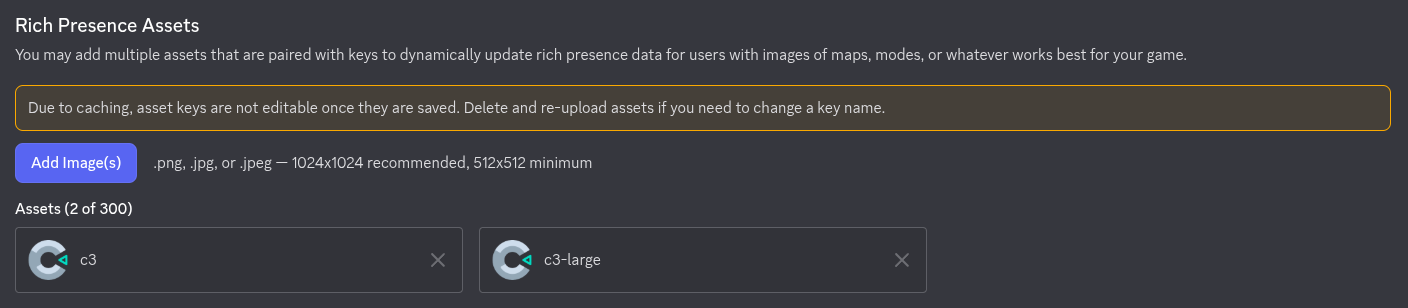
For images to appear in the Rich Presence, you must upload them as Rich Presence Assets in the Discord Developer Portal:
- Go to your application in the portal.
- Navigate to Rich Presence > Art Assets.
- Upload your images and give them names (these will be your keys).
- Use these exact names in the
Large image keyandSmall image keyparameters in Construct 3.
Testing
To see your Rich Presence in action, ensure that:
- The Discord desktop app is running.
- You have enabled Activity Status in your Discord user settings (Settings > Activity Privacy > Display current activity as a status message).
- Your game is running via Pipelab.